Task Mode
Task Mode is Agivar's "get it done" mode. Here, you describe what you want Agivar to do, it works out the steps, and then takes control of your computer to complete the task.
New conversations use Task Mode by default.
How to use Task Mode
Just say what you need — the more specific, the better. For example:
- "Compress every .jpg larger than 5MB under
D:\Photos\2024to under 2MB, and back up the originals to an_origsubfolder." - "Open a browser, search Bilibili for '非十科技', click the first video, and give it 2 coins."
- "Delete every row in this Excel file where column B is empty, and save it as
cleaned.xlsx."
If it is a simple question that can be answered directly, Agivar responds directly instead of using tools for the sake of using tools.
How Agivar works
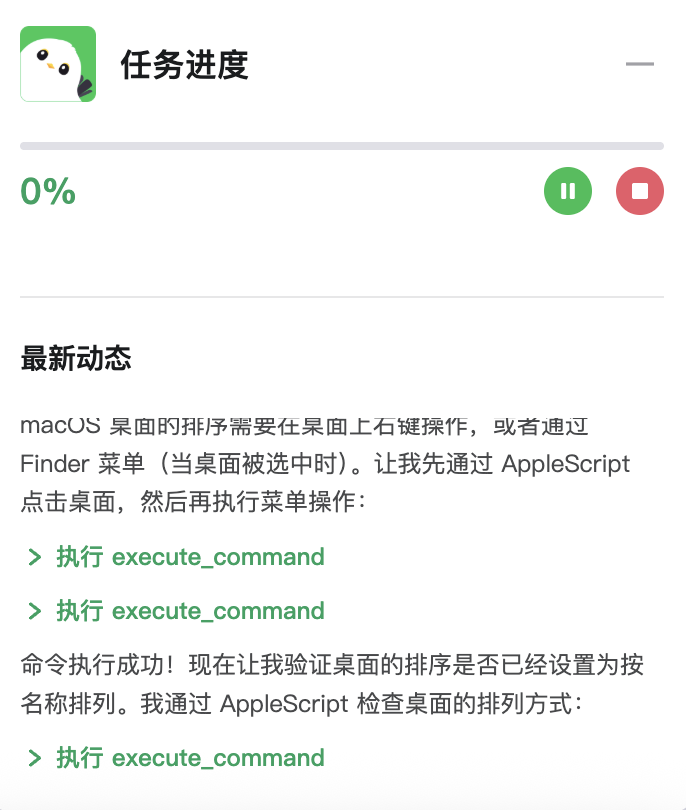
- Plan first, then execute — at the start of a task, Agivar drafts a TODO plan (visible in the task progress overlay), then works through it and updates the status after each step.
- Prefer the "lighter" approach — Agivar does not click through the interface when a step can be completed with ordinary tools, commands, or scripts. GUI operations (computer use) are the fallback.
- Turn deterministic batch work into scripts — for work with a clear scope and goal, Agivar tends to write and run a Python script instead of breaking the work into many small operations. The script is saved in the conversation-specific scripts directory, retained with the conversation, and deleted when the conversation is deleted.
- Consult the memory base before acting — before a GUI task, Agivar checks the memory base for relevant platform know-how, rules, and terminology. That is exactly what Teach Mode accumulates. If an entry references a demonstration recording, Agivar can ask targeted questions about details in that recording.
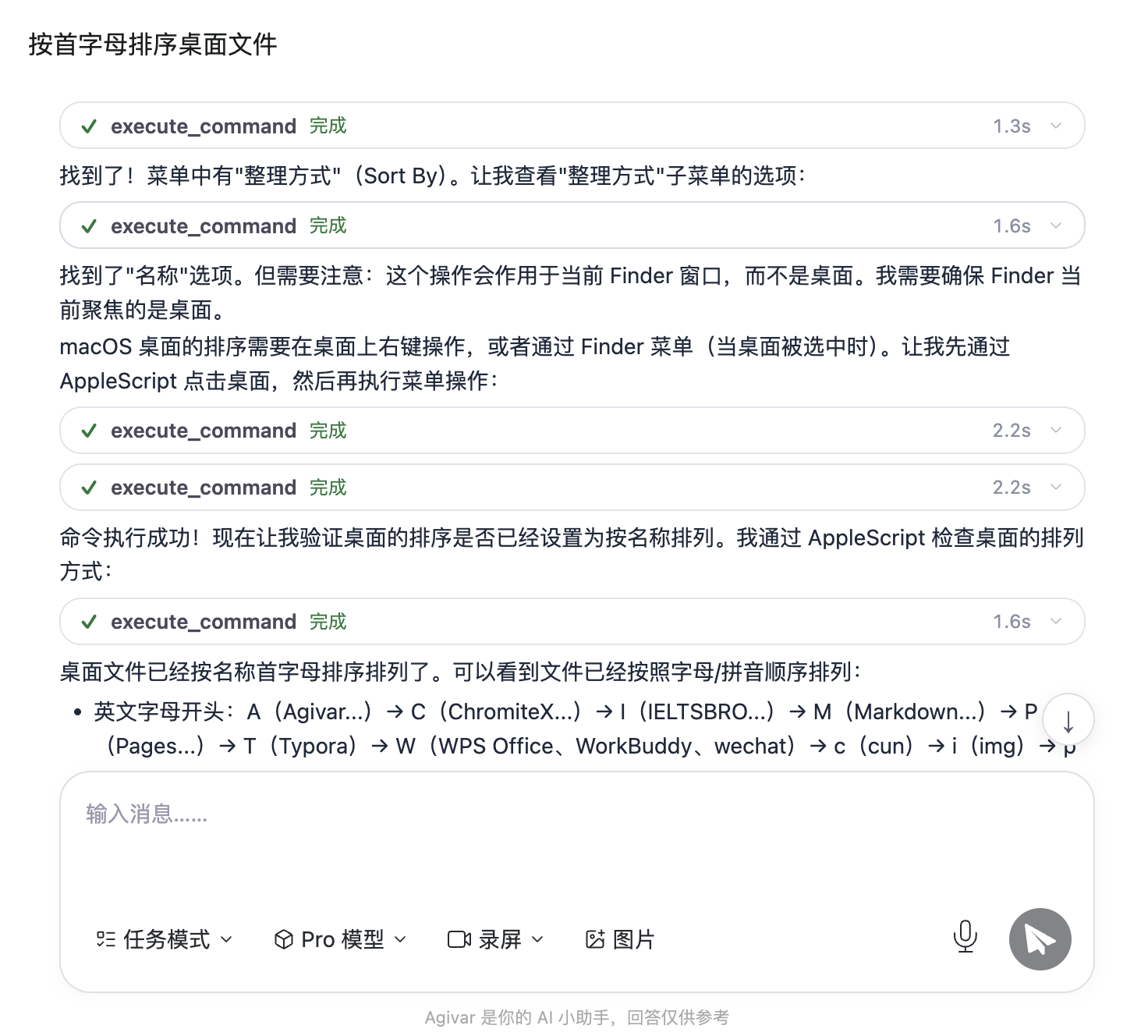
- Verify as it goes — Agivar observes the state before and after each step to confirm that the action took effect and the task is moving toward the goal.
What you will see while a task is running
- Task progress overlay: the TODO list + progress + latest activity.
- Tool-call cards: the input/result of each tool call, expandable.
- GUI action highlights: an on-screen hint window during computer use; "Step N: done" in the chat area.
- When the task is complete, a tray notification says "Task completed."
When you need to take over
The AI cannot complete the following steps for you. Agivar pauses, explains the situation, and switches the Send button to ▶ Continue:
- needing to log into some account, enter a password;
- needing to pass a CAPTCHA / SMS verification;
- needing to grant a system permission;
- any other step that must be done by you personally.
Once you have handled it, click ▶ Continue (no text is required) and Agivar resumes the task.
Stop / Continue
- While a task is running, the Send button displays ■ Stop. Click it to stop Agivar's current response.
- After a task is paused (waiting for you to take over or stopped manually), the Send button displays ▶ Continue. Click it to resume the current task, or enter and send new instructions.
How can you make your Agivar better?
Teach it your regular workflows, platform rules, and personal preferences — see Teach Mode overview. Teach it once, and every related task in the future can benefit.