Cloud Desktop
Welcome to Agivar Cloud Desktop! This guide walks you through the entire process of creating and opening a cloud desktop, transferring files, and stopping the desktop. You do not need to know any technical terms; simply follow the steps on the page.
1. What is a cloud desktop?
A cloud desktop is a Windows computer that runs in the cloud. You can install software, work with files, or let Agivar continue working inside it without affecting the computer you are currently using.
Think of it as a "rented computer in the cloud": create it when needed and pay with credits based on usage time; stop it when you are finished, and save important content as a backup beforehand.
2. How do I get started?
Step 1: Create a cloud desktop
Open the Agivar Settings menu, click Cloud Desktop, and then click Create Cloud Desktop.
Choose the following options:
- Cloud desktop name: for example, "Customer support" or "Data organization," so you can identify it easily.
- Image template: an image is a "backup of a cloud desktop environment." For your first cloud desktop, select the Agivar base image.
- Specification: a higher specification can run more software at the same time and may consume more cloud desktop credits.
- Storage: the amount of space available for installing software and saving files in the cloud desktop.
The bottom of the page shows the credits required to run the desktop and your available balance. After confirming the options, click Create.
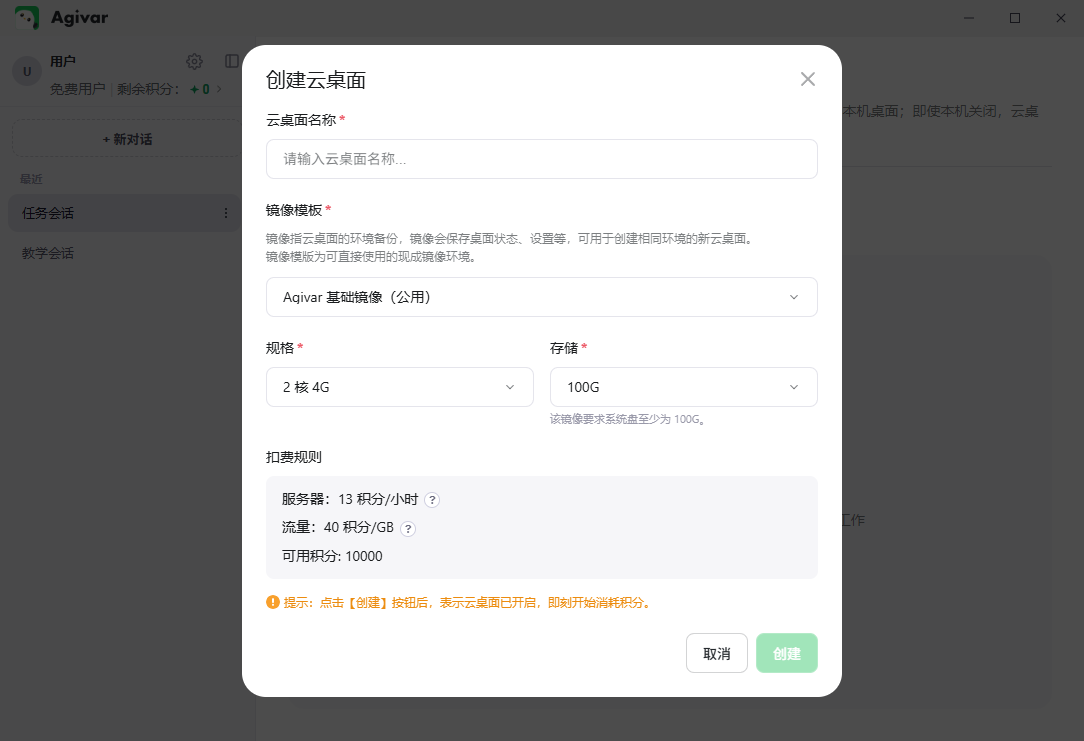
The credits for the first hour are deducted immediately after creation. Please wait while the status shows Creating. You can use the desktop once its status changes to Running.
An account can keep up to 5 cloud desktops. Only one cloud desktop can be created at a time.
Step 2: Open the cloud desktop
Under My Cloud Desktops, find a cloud desktop whose status is Running, then click the green Open Cloud Desktop icon on the right side of its row.
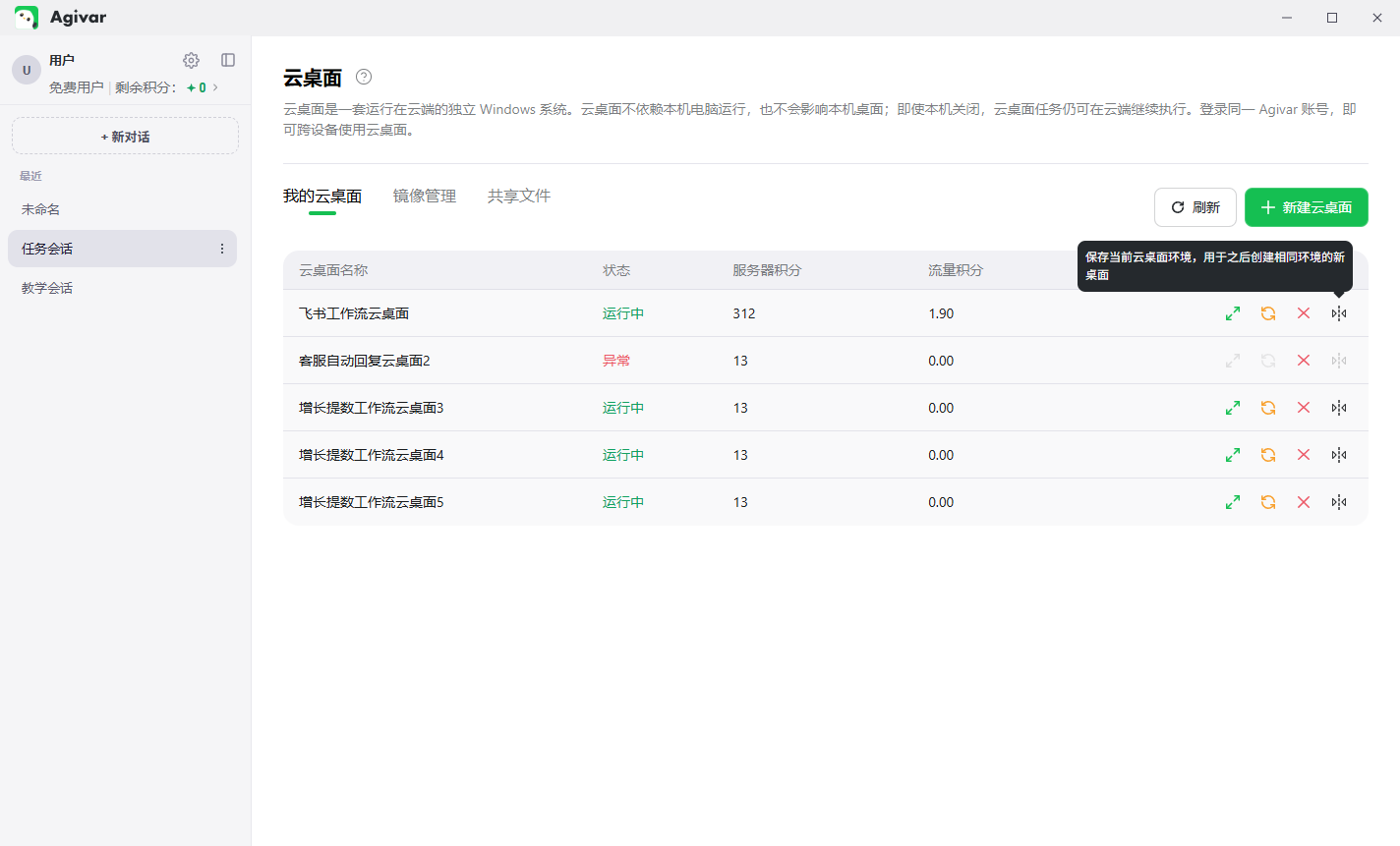
On a Windows computer, Agivar first displays a connection reminder:
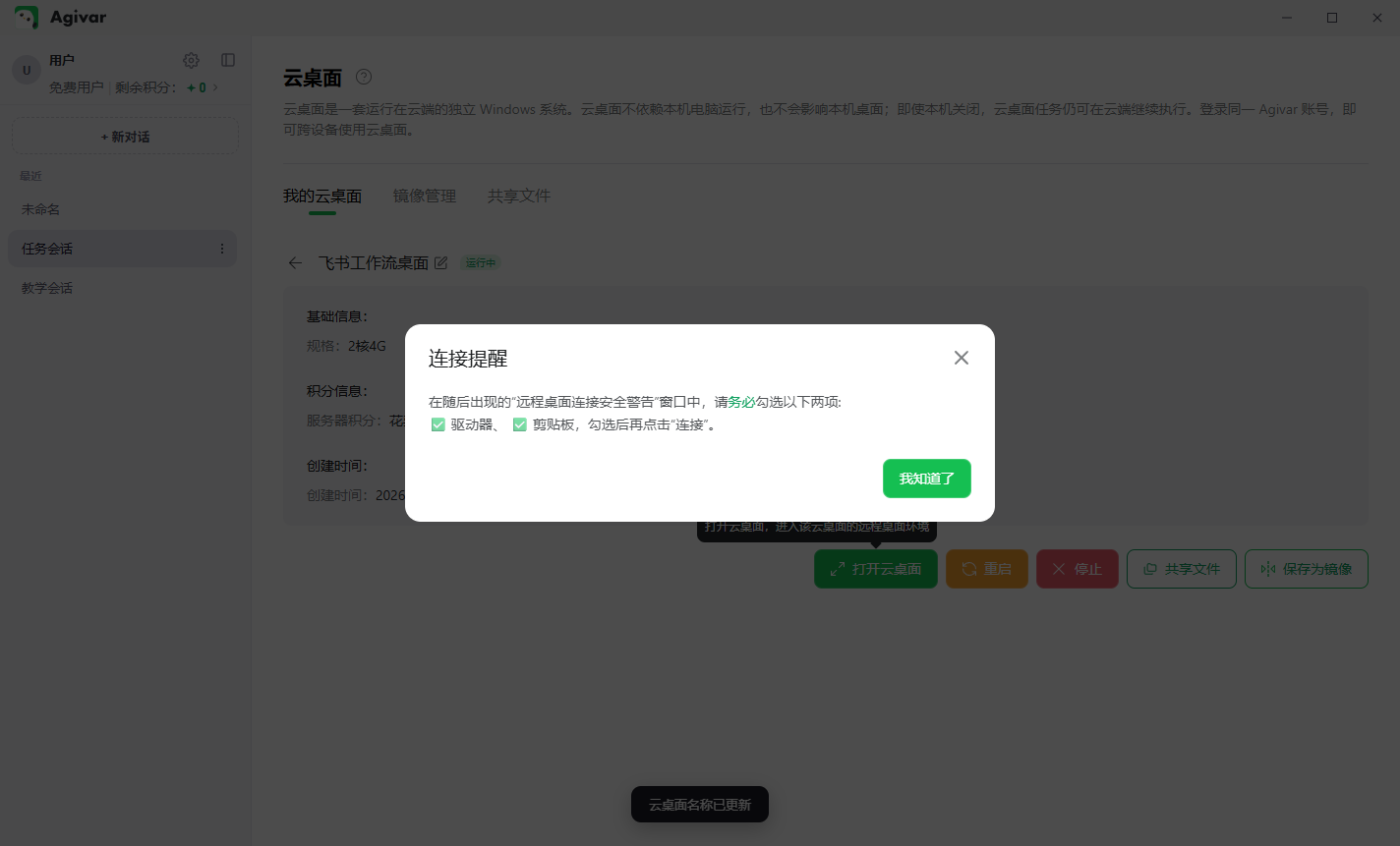
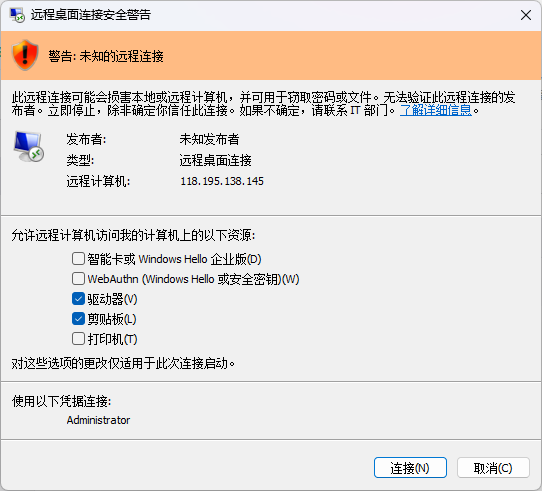
Click Got it. If Windows displays a security prompt, select:
- Drives: allows files to be transferred between your computer and the cloud desktop.
- Clipboard: allows text to be copied and pasted between them.
After selecting these options, click Connect in the Windows prompt.
Step 3: Close the cloud desktop temporarily
Closing the cloud desktop window exits the current view immediately. However, programs in the cloud desktop remain running and continue to consume credits.
To use it again, return to My Cloud Desktops and click Open Cloud Desktop.
If you are certain that you will never use it again, click Stop in Agivar. For details, see "5. Reboot and stop."
3. How do I transfer files?
Think of Shared Files as a file transfer area between your computer and the cloud desktop. Once a file is uploaded, it can be previewed from both your local computer and the cloud desktop.
From your computer to the cloud desktop
- Click Shared Files on the Agivar Cloud Desktop page.
- Drag a file or folder into the center of the page, or click Select File or Select Folder to upload it.
- Open the cloud desktop and go to This PC on its Windows desktop.
- Open the shared location shown on the Agivar page to view the uploaded content.
Note: the shared location may have a name such as V on ADMIN. This name is generated automatically by Windows and does not indicate an error. Use the name shown on the Agivar page.
From the cloud desktop back to your computer
- As with transferring from your computer to the cloud desktop, open Shared Files in Agivar inside the cloud desktop.
- Drag a file or folder into the center of the page, or click Select File or Select Folder to upload it.
- Return to the Shared Files page in Agivar on your computer.
- Click Open Shared Folder to find the file.
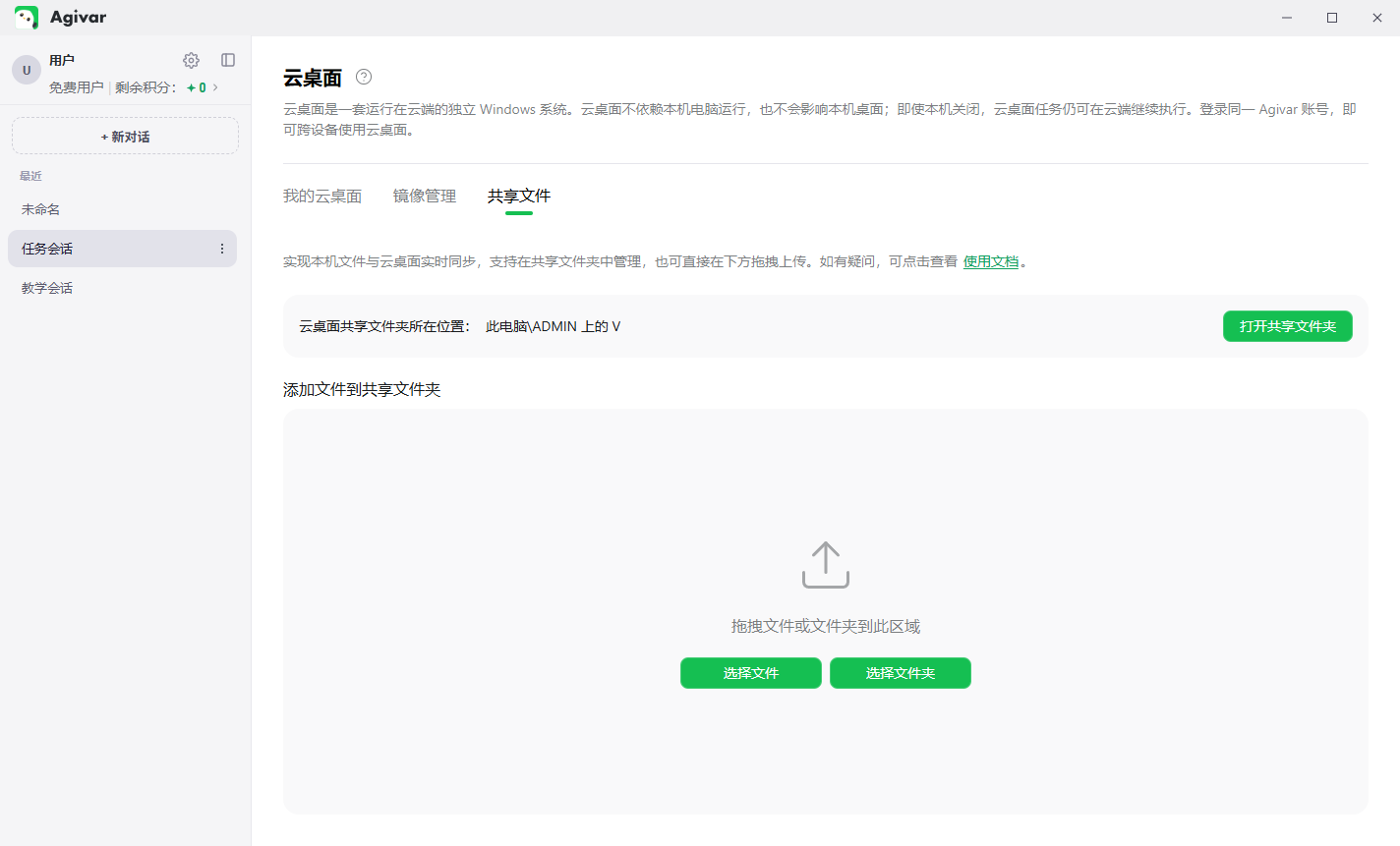
Files in Shared Files are stored only on the current computer; they are not stored on an online drive. The cloud desktop cannot view them after your computer is turned off or the cloud desktop window is disconnected. Shared Files also do not synchronize when you sign in to the same Agivar account on another device.
4. How do I save software and files?
If you want to use the current cloud desktop's settings, software, and files again in the future, save the cloud desktop as an image.
An image is a complete backup of the current cloud desktop. When creating a new cloud desktop, select an image you saved earlier to use that desktop environment directly without installing and configuring everything again. We therefore recommend saving cloud desktops you use regularly as images.
How do I save an image?
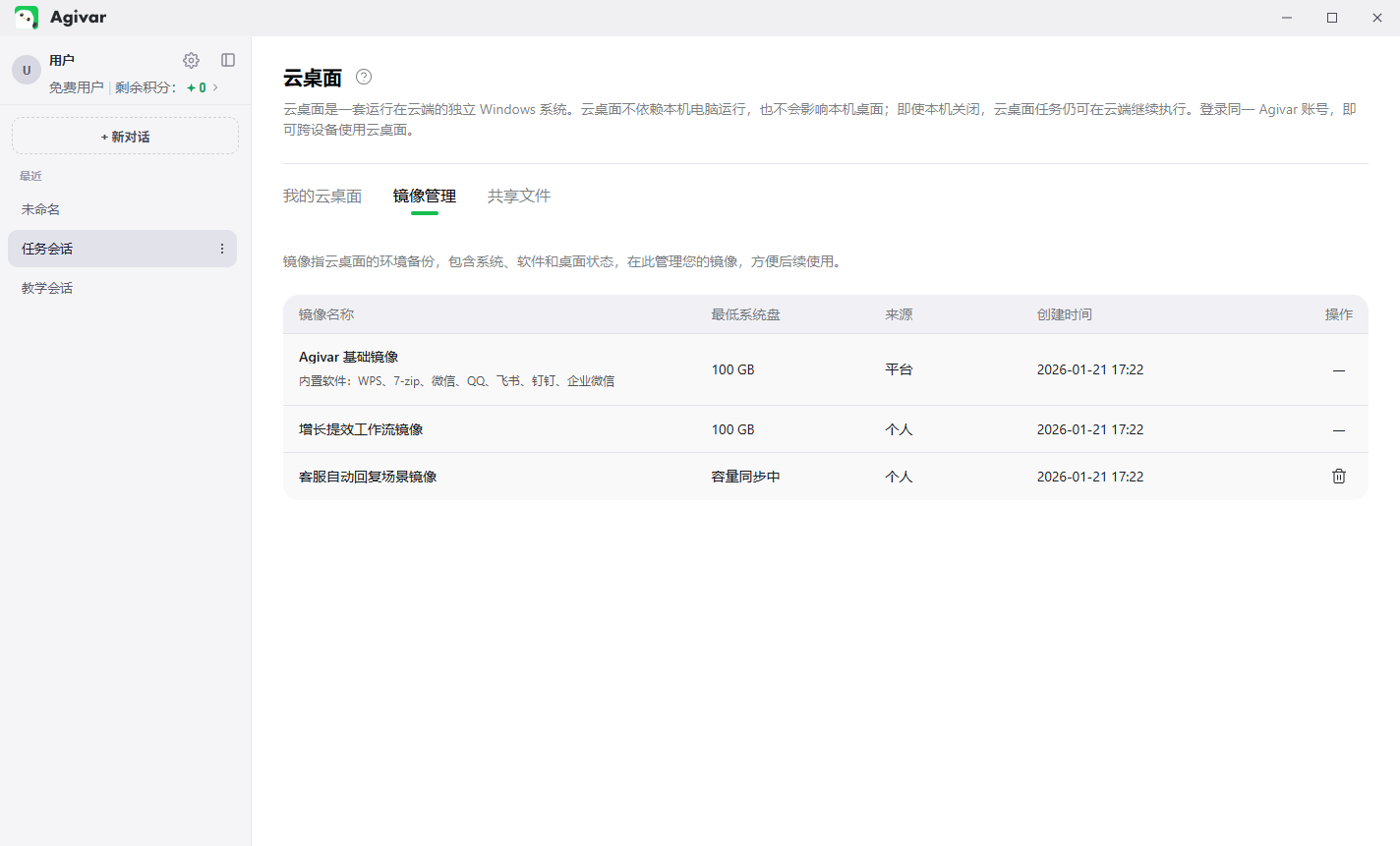
Click Save as Image in the cloud desktop list or detail page, enter a name, and confirm. Once it is ready, you can view it under Image Management.
Tips:
- Creating an image takes some time. Please wait until its status changes to Available.
- An account can keep up to 5 images that you save yourself.
- Wait for an image already being created to finish before creating another one, so only one image is in the Creating state at a time.
- An image cannot be deleted while it is being created.
How do I use a saved image?
When creating a cloud desktop, click the saved image under Image Template to select it.
5. Reboot and stop
Reboot the cloud desktop
If the cloud desktop is slow or software behaves abnormally, try clicking Reboot. Rebooting may interrupt running tasks, so save your work first.
Stop the cloud desktop
When you are certain that you no longer need it, click Stop. You can choose:
- Cancel: keep the cloud desktop.
- Save as Image: back up the current environment.
- Stop Now: delete the cloud desktop immediately and stop consuming credits.
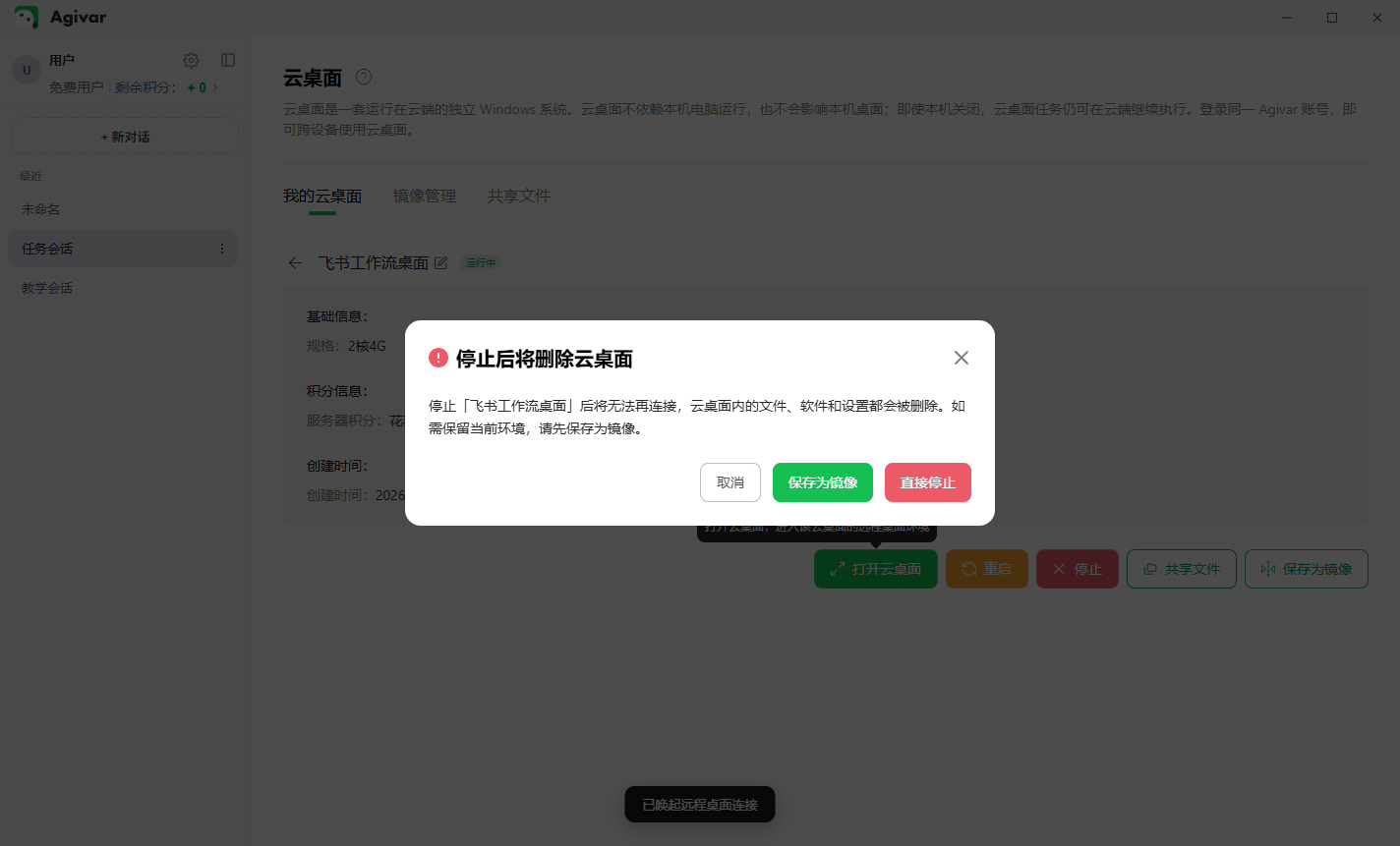
After you stop the cloud desktop directly, its files, software, and settings cannot be recovered. Transfer important files back to your computer or save the current cloud desktop as an image first.
6. What do the cloud desktop statuses mean?
| Status | Description |
|---|---|
| Creating | The cloud desktop is being prepared, and credit usage has already started. |
| Running | The cloud desktop is ready and can be opened. |
| Creating image | The current environment is being saved. Wait for it to finish. |
| Starting / Rebooting | The cloud desktop is starting. Try again shortly. |
| Insufficient-balance backup | Your credit balance is insufficient. The system is saving and processing the cloud desktop, so it cannot be operated temporarily. |
| Error | Refresh the page first. If it still cannot be used, contact Agivar Support. |
7. How are credits deducted?
Agivar Cloud Desktop is billed using credits.
Hourly credits
- The credits for the first hour are deducted immediately after you click Create.
- Credits continue to be deducted hourly as long as the cloud desktop exists.
- Closing the window, rebooting, or shutting down Windows inside the cloud desktop does not stop credit deductions.
- Hourly credit deductions stop only after you click Stop in Agivar and delete the cloud desktop.
Data-transfer credits
As a simple rule:
- Transferring software or files into the cloud desktop generally does not consume data-transfer credits.
- Transferring files from the cloud desktop back to your computer, or sending data from the cloud desktop to other websites and services, may consume data-transfer credits.
Refer to the Billing Rules shown when creating the cloud desktop for the actual price.
8. FAQ
1. Is it normal for the status to stay on "Creating" after I create a desktop?
Yes. Preparing a cloud desktop usually takes a few minutes. Please wait and refresh the page.
2. Does the cloud desktop keep running after I close its window?
Yes. Closing the window only exits it temporarily. The cloud desktop remains running and continues to consume credits.
3. Why does nothing happen when I click "Open Cloud Desktop"?
First, confirm that its status is Running. If it is still being created, rebooted, or saved as an image, wait for that operation to finish, refresh the page, and try again.
4. What should I do if I cannot see a file I just transferred in the cloud desktop?
Make sure Drives was selected when connecting. Then check the name shown on the Agivar Shared Files page and look for the same name under This PC in the cloud desktop.
5. What should I do if the cloud desktop will not open or looks abnormal on a Mac?
Open the Agivar Settings menu, hover over the question mark to the right of Cloud Desktop, enable Cloud Desktop Compatibility Mode, and reopen the cloud desktop. On first use, complete the installation as prompted.
6. Can I recover a cloud desktop that I stopped accidentally?
It cannot be restored directly. If you saved an image before stopping it, use that image to create a new cloud desktop.
7. Is my original cloud desktop still available after I switch to another computer?
Sign in with the same Agivar account to continue managing your existing cloud desktops and images. However, content in Shared Files is stored only on the original computer and does not synchronize to the new computer.